Tasks
Use this section to organize activities and follow recurring or related work in WebTop.
Quick view filters
In the toolbar above the grid there are 7 buttons that allow you to select the most suitable quick view. The first two buttons refer to today's activities or to those planned within the next 7 days:

- Today: shows unfinished tasks without a start date or with a start date up to today (inclusive) and those completed with an end date up to today (inclusive)
- Next 7 days: shows uncompleted tasks with no start date or starting up to 7 days from today and completed tasks with completion date up to now (inclusive)
The remaining 5 buttons allow you to obtain these other types of quick views:

- Not started: shows only activities with status "To be started" and starting today (inclusive)
- Late: shows only uncompleted tasks with start date up to today (inclusive) and completion date previous to the current one
- Completed: shows all activities with status completed and with any date range
- Not completed: shows all activities with status other than completed and start date within 1 year (for recurring tasks, only the first instance of the series still to be completed is shown)
- All: shows all activities in any status (for recurring tasks the series icon main is shown)
Recurring tasks
It is possible to configure any type of recurrence:
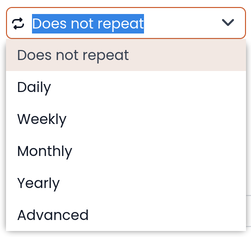
Editing a recurring activity can be done in two different ways:
- on the individual task by opening it with a double click from a view other than All In this case the task will be removed from the recurrence and its icon will become this one:

- on the entire series with a double click from the All view or by using the following button on the single task already open:

Sub-tasks
On any task it is always possible to add related sub-tasks (one Master/Slave level only) simply by using the right button and selecting Add sub-task Within the connected tasks, both in the master and in the slave, a link is available at the bottom right to open the related tasks:

It is possible to Move or Copy this type of activity (right click -> Move/Copy) by choosing to copy or move the sub-activities through an option active by default.
Multiple searches
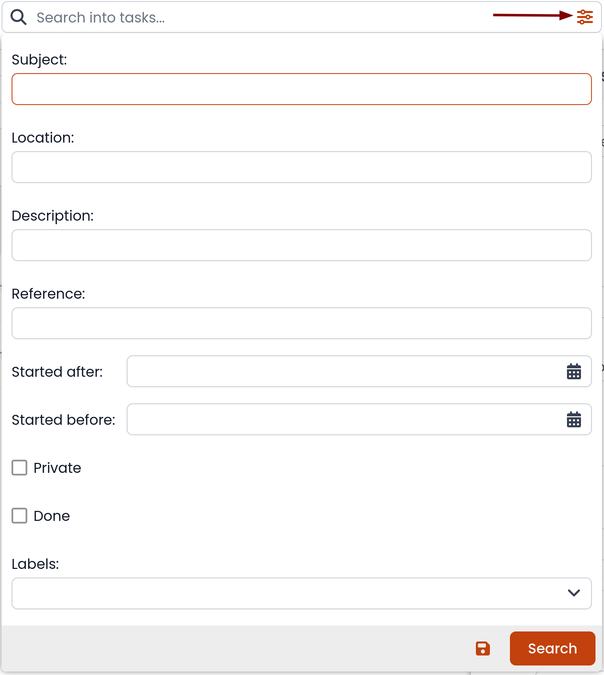
In the bar at the top there is a quick search that is executed on all fields. You can also narrow the search by filling multiple search fields.