Use this section to manage messages, folders, and mail composition in WebTop.
Sharing email
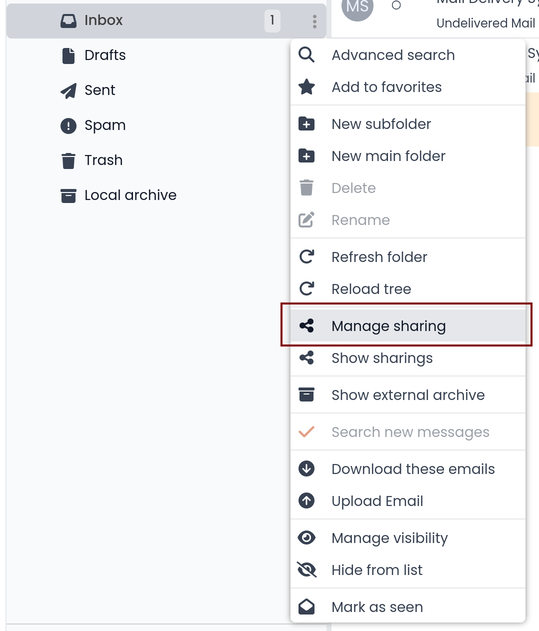
It is possible to share a single folder or the entire account with all subfolders. Select the folder to share -> right click -> Manage sharing:
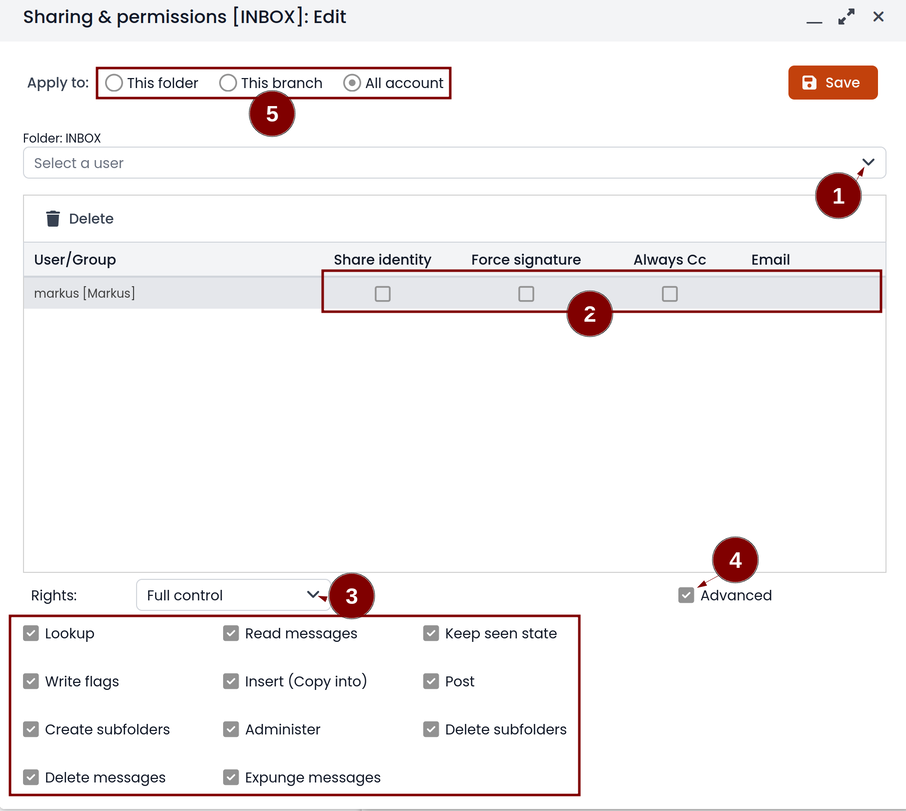
- select the user to share the resource (1)
- select if you want to share your identity with the user and even to force your signature (2)
- choose the level of permissions associated with this share (3)
- if you need to further change permissions, select
Advanced(4) - finally, choose whether to apply sharing only to the folder from which you started, or only to the branch of subfolders or to the entire account (5)
The Force mailcard option can be used only if the mailcard has been associated to the mail address.
Mail inline preview
By default, the mail page will display a preview of the content of the latest received messages.
This feature can be enabled or disabled from the Settings menu, under the Mail tab, the check box is named Show quick preview on message row.
Mail archiving
Archiving is useful for keeping your inbox folder organized by manually moving messages.
Mail archiving is not a backup.
The system automatically creates a new special Archives folder
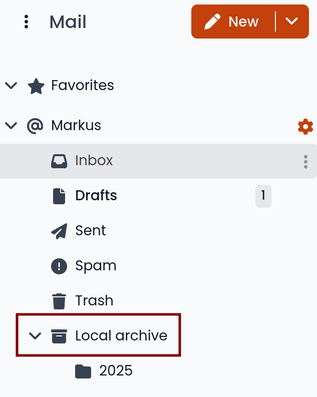
If the Archives folder does not appear immediately upon login, it will appear at the first archiving.
There are three archiving criteria:
- Single folder: a single root for all archived emails
- Per year: a root for each year
- By year / month: a root for each year and month
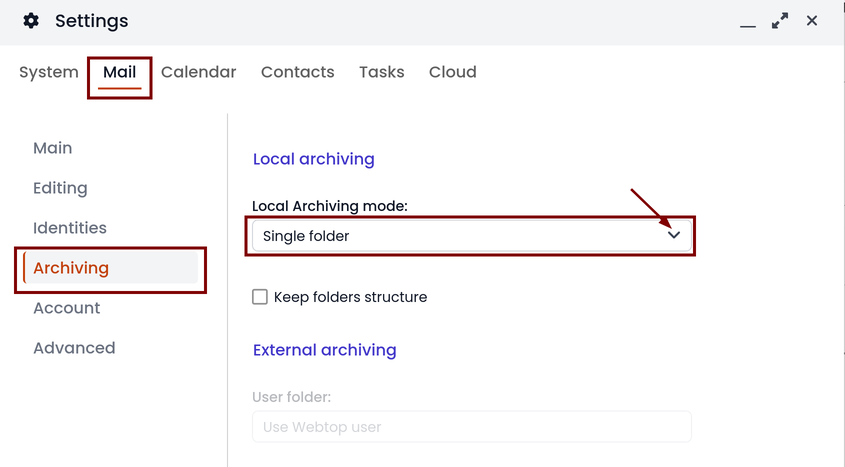
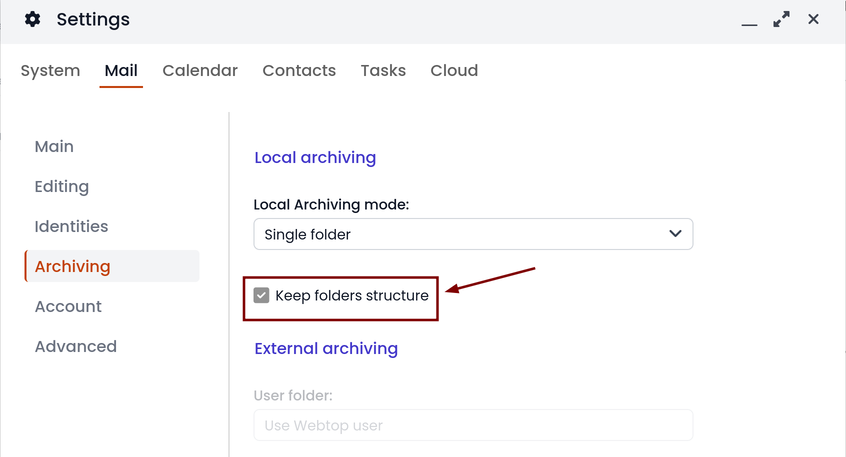
To maintain the original structure of the folders it is possible to activate Keep folders structure
The archiving operation is accessible from the contextual menu (right-click). Click on Archive
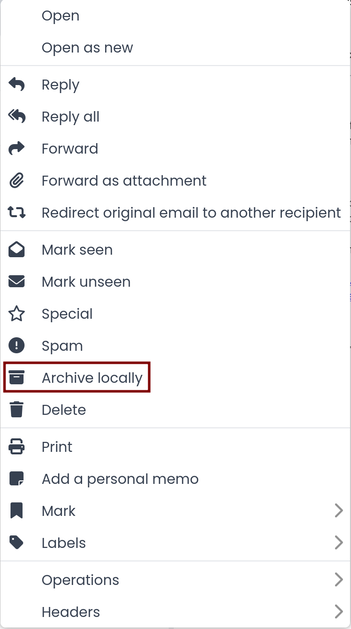
The system will process archiving according to the last settings chosen.
IMAP folders subscription
By default, all IMAP folders on the server are automatically subscribed and therefore visible since the first login.
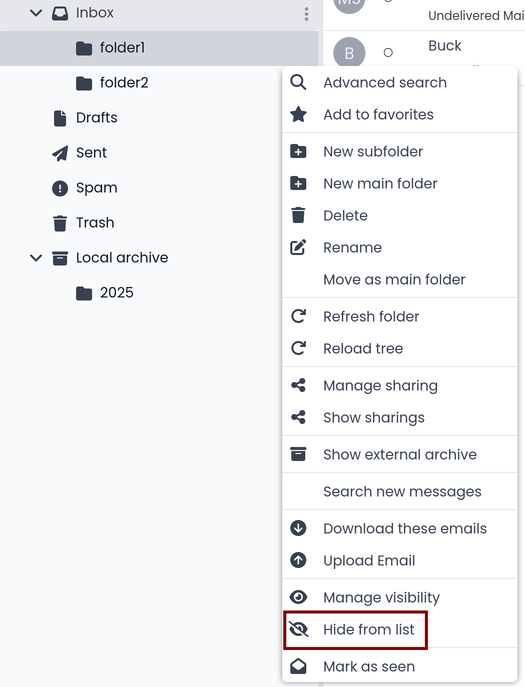
If you want to hide some folders from the view, which is equivalent to removing the subscription, you can simply right-click on the folder to hide and select from the interactive menu the item Hide from list.
For example, if you want to hide the subfolder folder1 from this list, just right-click on it and select Hide from list:
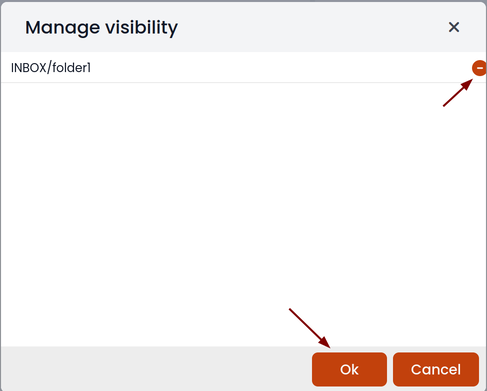
It is possible to manage the visibility of hidden folders by selecting the Manage visibility function:
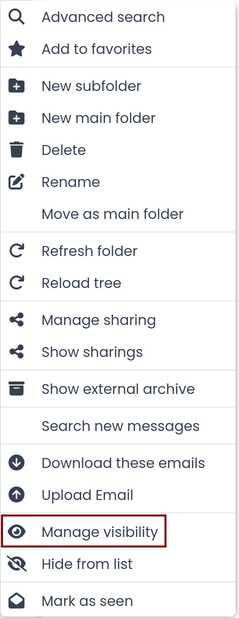
For example, if you want to restore the subscription of the folder1 just hidden, just select it from the list of hidden folders and click on the icon on the left:
Browser notifications
WebTop can notify new mail messages and upcoming calendar events.
To activate it, simply access the general settings of your user:
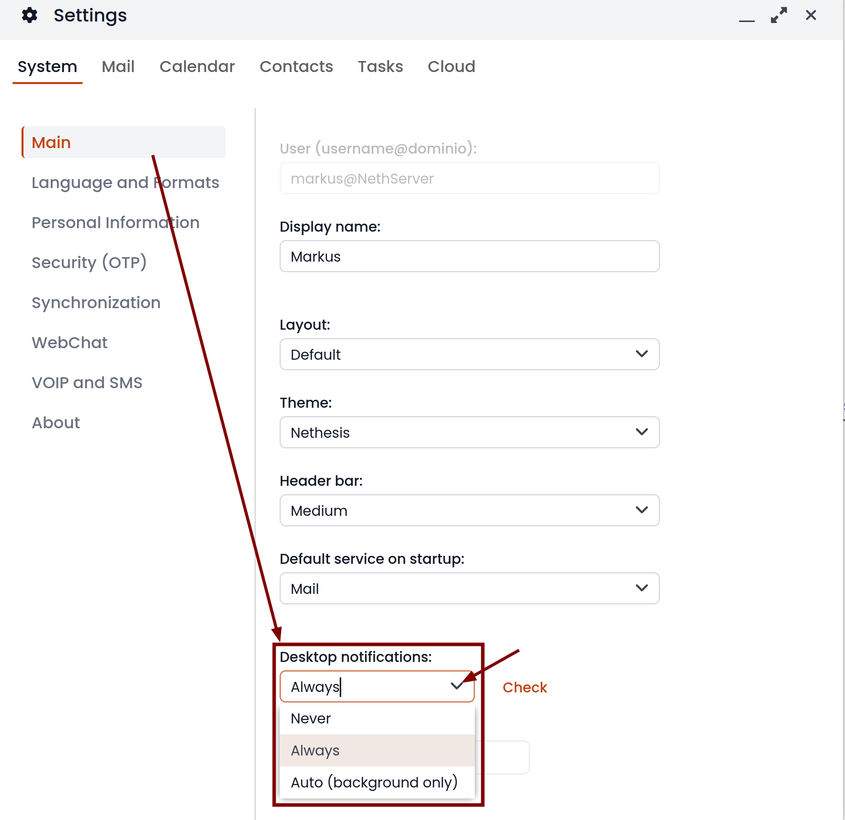
It is possible to enable desktop notifications in two modes:
- Always: notifications will always be shown, even with the browser open
- Auto (in background only): notifications will be shown only when the browser is in the background
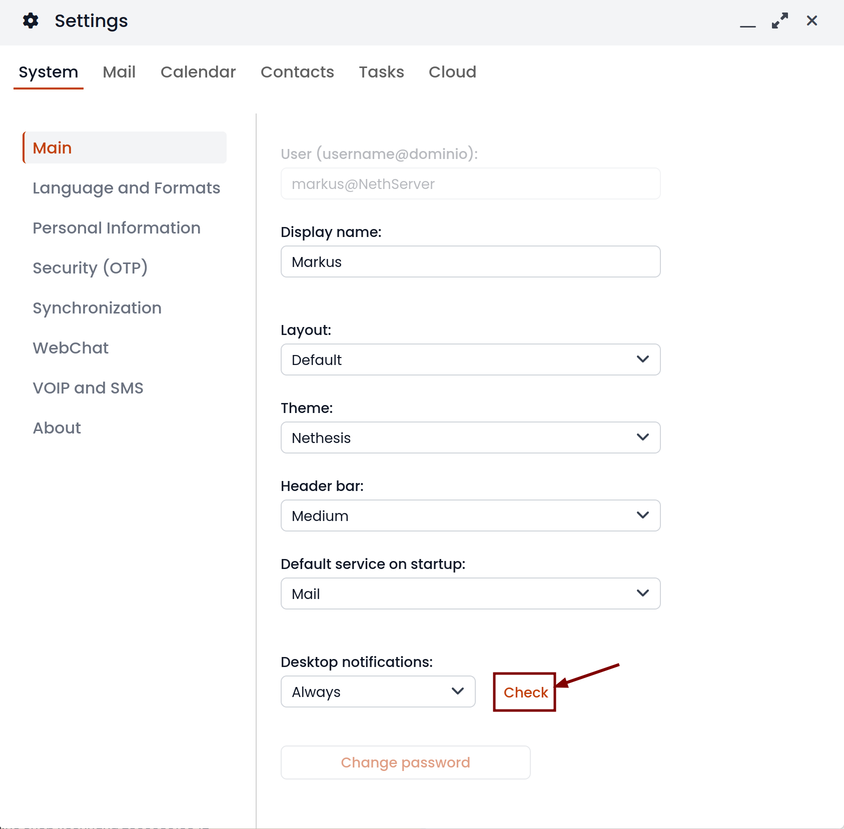
Make sure to allow notifications inside your browser.
If you need to enable this consent later on a different browser just click on the appropriate button:
Chat integration
Web chat integration installation is disabled by default for all users.
To enable chat integration:
- Install the "Ejabberd" application from the
Software centerpage See Install applications and Ejabberd. - In Ejabberd
Settingspage, the fieldEjabberd domain (FQDN)must match the value ofMail domainin WebTop's settings. - Access WebTop as admin user then enable the web chat authorization:
- Access the Administration menu, then
Domains --> NethServer --> Groups --> Users --> Authorizations Add (+) --> Services --> com.sonicle.webtop.core (WebTop) --> Resource --> WEBCHAT --> Action --> ACCESS- Click OK then save and close
- Access the Administration menu, then
AI features
WebTop Mail includes AI features that depend on an LLM provider.
Activate the LLM provider service
To activate the integrated AI features, complete these preliminary steps:
- access the admin panel
- open the Licenses page:
Domains --> NethServer --> Licenses - upload a valid license or activate the trial license, valid for 3 months, by clicking the lock button and following the wizard
- open the AI page
- if an invalid license warning is displayed, refresh the page
- select the LLM provider
- enter the model you want to use for the selected provider
- enter the API key from the selected LLM provider management panel
- optionally set a maximum token usage quota, then save
Authorize users to use the service
After activating the LLM provider, you must enable the individual users who can use the integrated AI features in the Mail module.
You can grant the authorization to individual users or groups.
Open the user or group management page, select the user or group, then click Edit or double-click. Open Authorizations, then Add, and select:
- Service:
WebTop (com.sonicle.webtop.core) - Context:
AI_ACTIONS - Action:
ACCESS
With this authorization, AI functions are enabled and available to users at the next login.
You can also grant an additional authorization to let users configure a personal LLM provider.
Select the user or group, then click Edit or double-click. Open Authorizations, then Add, and select:
- Service:
WebTop (com.sonicle.webtop.core) - Context:
AI_PERSONAL - Action:
MANAGE
With this authorization, the user can access Settings –> System –> AI and configure a personal LLM provider.
Available AI functions
The integrated AI functions are available in two ways:
- on an existing received or sent message by clicking the button in the top-left toolbar
- while editing a message by clicking the button in the HTML editor toolbar
Available functions for existing messages:
Analyze
- summarize the content
- discussion status
- check my availability
- analyze the tone
- classify urgency
- suggest an action
Explain or simplify
- explain in simple language
- define jargon or acronyms
- what is the sender really asking?
Reply
- help me reply
- decline or postpone with alternatives
- confirm receipt
- accept
- reject
- need more time
Extract
- extract dates
- list participants and possible roles
Check reliability
- simple
- technical
Other functions
- translate into another language
- answer my question
Available functions while editing a message:
- help me write
- refine selection
- rewrite
- shorten
- expand
- simplify
- improve
- correct spelling
- change tone
- formal
- informal
- friendly
- assertive
- coaching on selection
- translate selection
Token usage report for administrators
In the WebTop admin panel you can view a report of the tokens used by individual users with the configured company LLM provider.
Open Domains --> NethServer --> AI --> Report.
Select the time period view you want to display.
Click Share to send an HTML report of the selected view to an email address.
Click Generate on the right to schedule the report delivery by email at fixed intervals: daily, weekly, or monthly.
Mail composer customization
Hide auto-suggested recipient in lookups
You can disable the suggestion of automatically saved addresses. Access the web administration panel -> Properties (system) -> Add ->, select com.sonicle.webtop.core (WebTop) and enter the data in the Key and Value fields according to the key to be configured:
recipient.provider.auto.enabled = false (default is true)
Edit subject of a mail and save it
To enable the modification of the subject for received and sent emails, access the web administration panel -> Properties (system) -> Add -> select com.sonicle.webtop.mail (Mail) and enter the data in the Key and Value fields according to the key to be configured:
message.edit.subject = true (default is false)
Delete automatically suggested email addresses
When compiling the recipient of a mail, some automatically saved email addresses are suggested. If you need to delete someone because it is wrong, move with the arrow keys until you select the one you want to delete (without clicking on it), then delete it with Shift + Canc