WebTop-5: Manage and use contact lists
In the Address Book module you can create and manage contact lists for group emails.
You can create a new list in three ways:
- Select New and choose Contact list.
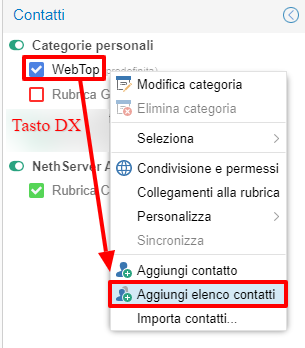
- Right-click the address book where you want to add the list and select Add contact list.
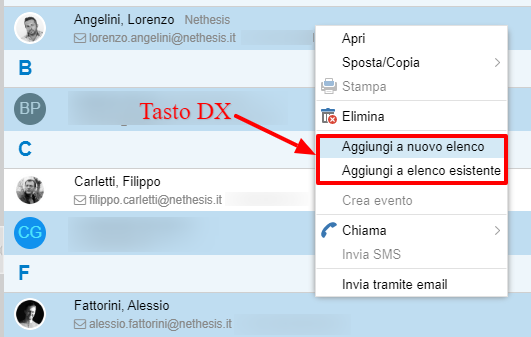
- Select one or more contacts, right-click them, and choose Add to new list or Add to existing list.
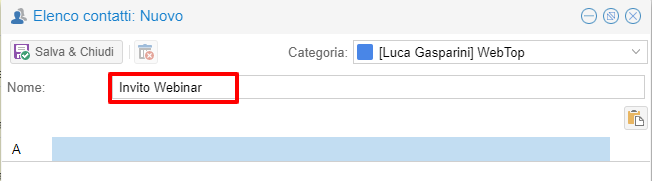
When you create a list, fill in the required Name field. You can then add email addresses by pasting them with the import button or by typing them manually and choosing the recipient type (To, CC, or BCC).
Contacts taken from your address books are linked to the source contact, so changes in the address book are reflected in the list.
To find an existing list, use the quick search box or the Distribution list only filter.
To send mail to a list, type the list name in New message. If you need to adjust recipients for a single send, use Import recipients from contact list.