WebTop-5: use incoming mail filters and automatic replies
Use incoming mail filters to process new messages automatically, and configure an automatic reply when you are absent.
Incoming mail filters
To activate or change incoming mail filter rules, use the button in the top-left toolbar.
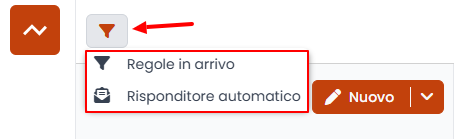
Select Incoming rules to open the window where you can create new rules or change existing ones.
For each rule, you can quickly enable or disable it by clicking its status indicator.
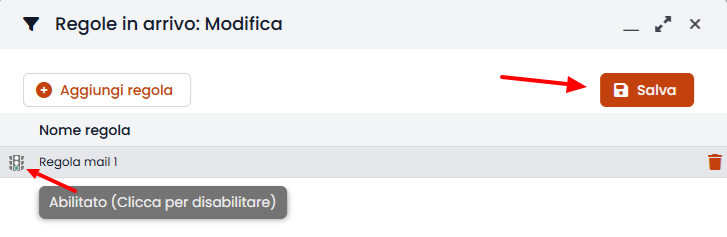
When the configuration is complete, click Save in the top-right corner to send it to the IMAP server.
Automatic replies
Select Automatic responder to open the window where you can enable, disable, and configure the automatic reply used when you are absent.
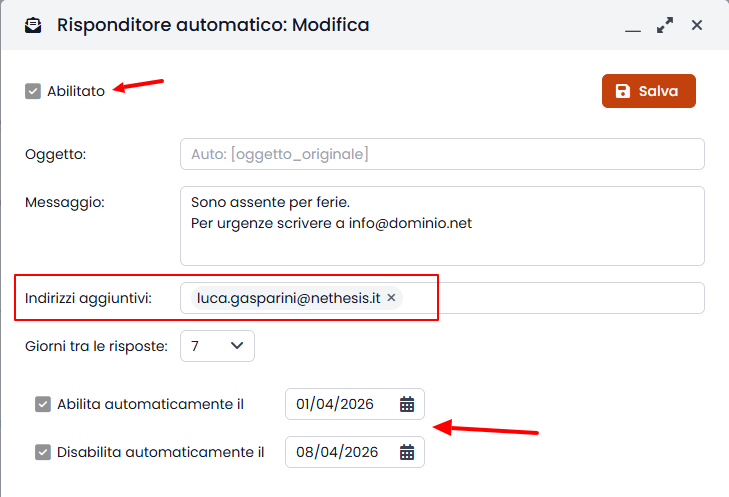
In the additional addresses field, enter all email addresses that must send the automatic reply, separated by commas.
Always add at least the address used by your main identity.
You can also customize the subject of the automatic reply, change the number of days between replies sent to the same sender, and set automatic activation and deactivation dates.
At the moment, you cannot configure automatic replies for all users in bulk. You must access each profile, optionally using the impersonation login (admin!<user>).