WebTop-5: Search email messages
WebTop provides several ways to search the email archive stored on the IMAP server.
Quick search in the current folder
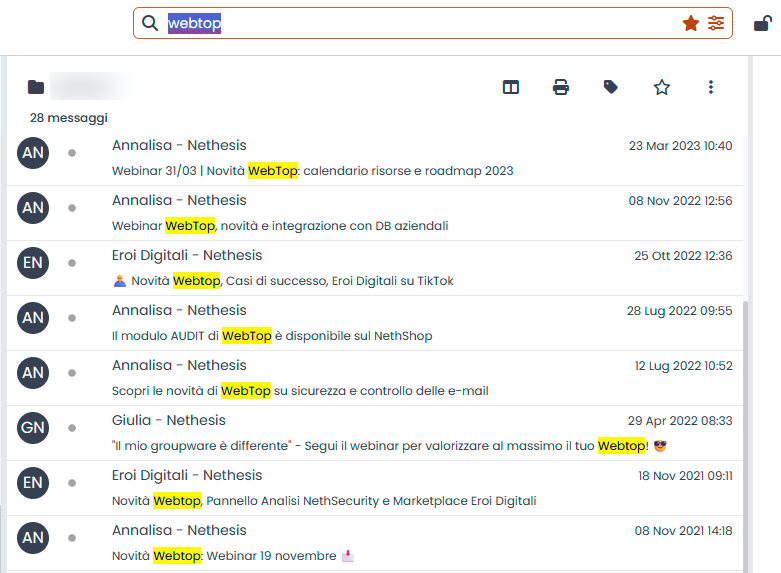
To run a quick search, enter a keyword in the search bar above the message list and press Enter.
This search checks only the sender, recipient, and subject fields to return results faster. It runs only in the current folder.
In the result list, WebTop highlights the matching keyword in yellow.
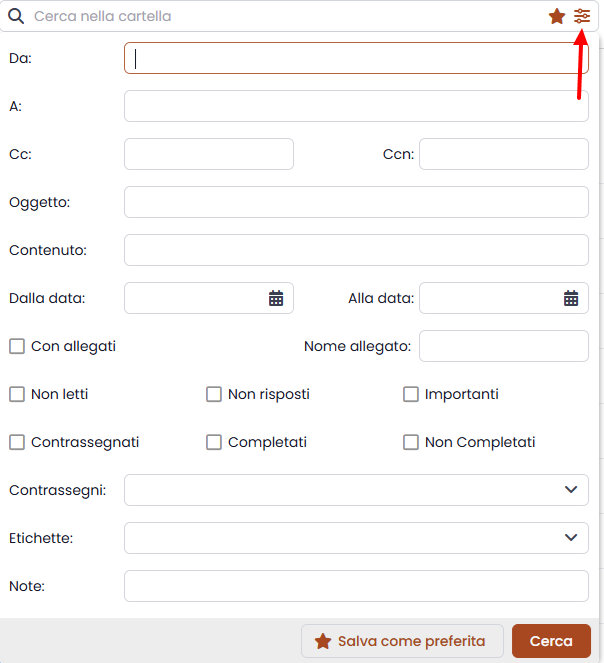
You can combine multiple search conditions by clicking the search options button in the top-right corner of the search bar.
Favorite and recent searches
To save a completed search as a favorite, click the button at the bottom of the search options panel.
To reuse it later, click the star icon on the right side of the search bar.
WebTop also saves every search as a recent search and suggests it while you enter a new query.
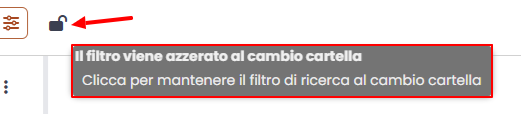
Click the lock icon on the right side of the search bar to lock the current search. When the search is locked, WebTop applies it automatically as you move to other folders.
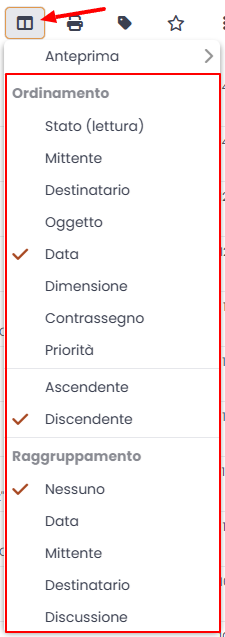
You can also select sorting and grouping options for the current folder from the view options button.
Advanced search across folders
Use advanced search when you need to combine multiple conditions and choose the folders where WebTop must search.
To open advanced search, click the orange gear icon next to the account root and select the search option.
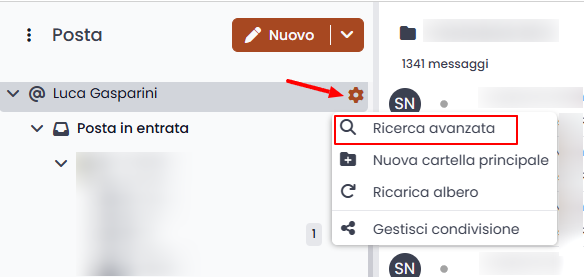
You can also open it from the context menu of any mail folder.
In the advanced search window, set the conditions and select the folders to include in the search.
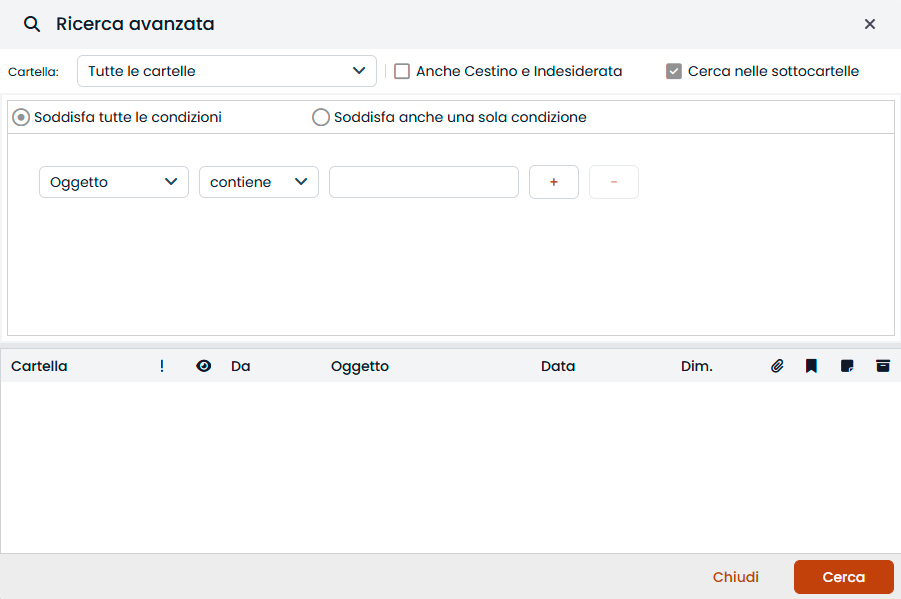
After WebTop shows the result list, double-click a message to open it.
Interactive search
Use interactive search when previous searches return too many results.
To start it, enter a keyword in the top search bar and press Ctrl+Enter.
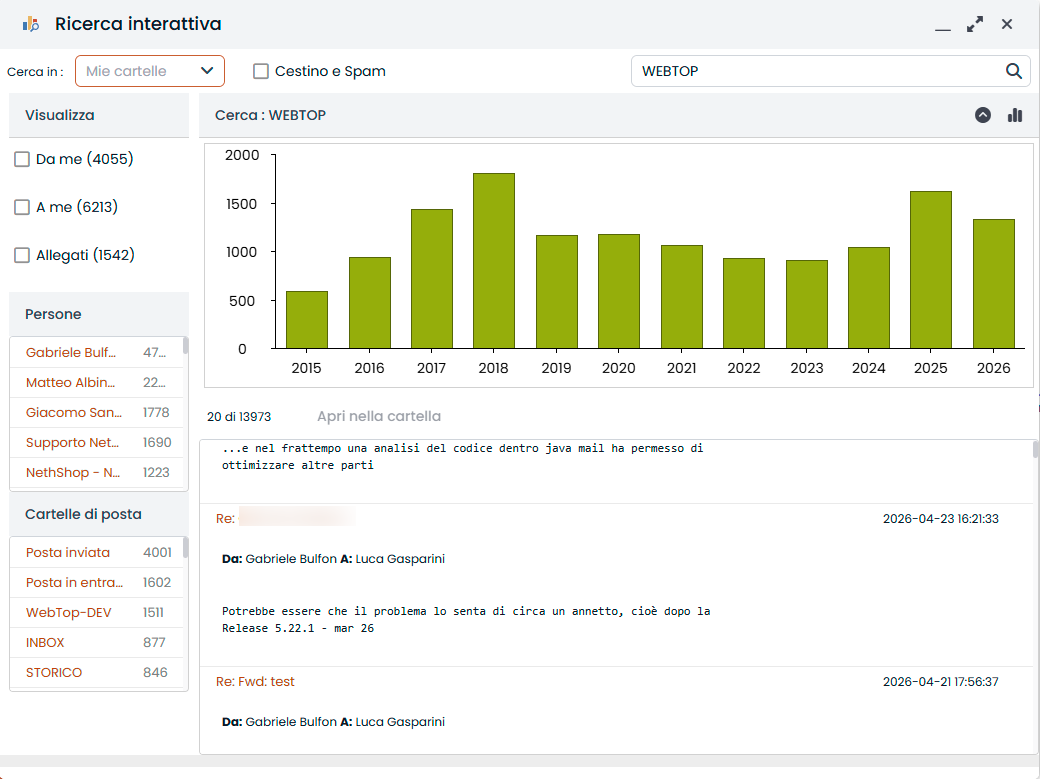
Select the target folder from the list in the top-left corner, then use the filters in the left column to narrow the results step by step.